
The international-facing arm of the Chinese Trip.com group is eponymous Trip.com, one of the world’s foremost online travel agencies. Travelers use Trip.com’s website and mobile app to not just compare and book flights but also stays, transport such as rental cars, trains, and airport rides, and cruises, tours, activities, and attraction tickets. It’s most famous for excelling at finding great prices for all kinds of stays, so we’re delving into the process of how to book hotels on Trip.com. We were especially impressed by the fact that the website features the full prices, including fees and taxes, on the main results page. Additionally, we could even sort all the properties by that specific “true” cost, which is most unusual among travel websites today. Here’s a detailed guide to booking all kinds of stays all over the world on Trip.com.
Also read: Using Trip.com To Plan Your Multi-City Vacation.
Starting The Process
In order to book stays on Trip.com, you need to first head to the main website, Trip.com. Next, select the “Hotels and Homes” option from the menu on the side. It directs you to the main Trip.com Hotels page, which is where your booking process begins.
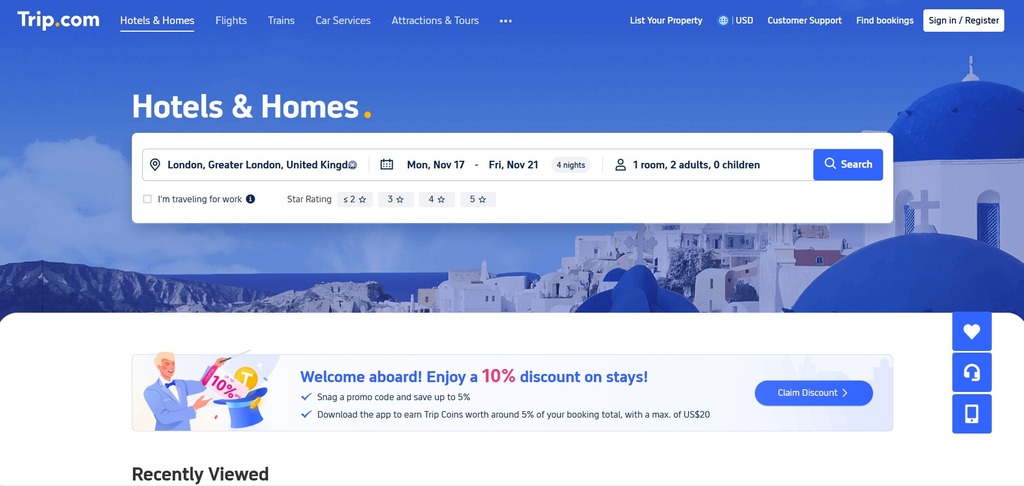
You first need to enter the destination of your choice, whether it’s a city or even a specific neighborhood, if you already know where you want to stay. When we were searching for stays for London, as you can see in the image above, we entered London as our destination. Next, we entered the dates of our supposed stay as well as the number of travelers we were looking for accommodations for. This is important as some accommodation options might not accommodate a larger number of travelers or children. You also have the option of choosing only hotels with a specific star rating right below the search bar, and whether you’re traveling for work.
When the results are drawn up, as you see below, Trip.com usually sorts them according to its own recommendations. However, you can sort them according to price (high to low or vice versa), star rating, distance, and even the most reviewed hotels on the list.
Check Rates on:

Filters
Trip.com’s filters are legendary, and their filters for accommodations are no exception. For one, they have a section called “popular filters” for the specific neighborhood or city. So, when we were looking for stays in London, some popular filters included proximity to Hyde Park and the British Museum, availability of parking, and free cancellation.
As you scroll down, other important filters crop up, such as budget, where you can choose to display one of three prices: total stay (taxes + fees), price per room per night (incl. taxes + fees), and price per room per night (excl. taxes + fees). This is useful if you have a multi-night stay. Besides star and guest ratings, the filters also include the type of property (hotel, serviced apartment, guesthouse, etc.) and an extensive list of amenities (pool, gym, spa, parking, elevator, pets, currency exchange, etc.). You can even choose specific room facilities if you want, such as a balcony, fridge, air-conditioning, coffee machine, and the like.
However, what we really appreciated were the even greater detailed filters, such as the number of bedrooms (especially in serviced apartments), bed types (king/queen/twin), meal inclusions, and property features (self check-in, romantic vibes, great views, etc.).
As and when you keep checking the filters that you want or apply to you, the list will keep getting updated.
Check Rates on:
Map View
One of Trip.com‘s highlights is the “Map view,” the option for which sits at the top of the left column, above all the filters. When you click on “Show Map,” a map pops up, showing the location of all the stays on the list in front of you.
We loved the map view for many reasons. Firstly, we could narrow down on specific neighborhoods depending on our budget and our itinerary. In fact, we could actually see the areas we wanted to explore the most in reference to the stays we were considering. What’s more, the map also displayed the prices of the hotels so we could compare them on the spot. If all that wasn’t enough, hovering the mouse pointer on the prices resulted in a pop-up with the hotel details, including rating, location, and total price of our stay.
To go back to the list of hotels, simply select “Go back to hotel list.”
Check Rates on:
Hotel And Room Selections
After you’ve chosen the specific hotel that meets all your requirements and needs and click on it, Trip.com directs you to the hotel’s page, where you need to choose your rooms next. The hotel page gives greater details of the hotel, such as location from the nearest subway stations, room details, reviews, services and amenities, and the booking policies, among others. Plus, it also mentions the highlights of the hotel and what it’s most known for right at the top, helping you cement your decision.
If there are multiple rooms that meet your requirements, you need to peruse through them all to see which suits you best. The price displayed at the top is the average price for the room that meets all your requirements to the T. However, what sets Trip.com apart is that it has tons of discounts, so you might end up finding other rooms for the same price or even less, albeit with some filters edited, just in case you decide to change your mind.
In our search, since we were two adults, it showed king/queen/double beds by default, but it also provided options for rooms with twin beds that were cheaper, albeit without breakfast. So, make sure that you check out all options and not just the top ones to decide what works best for you. After you’ve made up your mind, click on “Reserve.”
Check Rates on:
Final Step: Payment
Clicking on “Reserve” takes you to the final page with your reservation details and where you’ll be making the payment. Before all that, a pop-up details until what date and time your reservation is free to cancel. While you can continue booking without signing in, registering on Trip.com or signing in will help you earn Trip Coins.
The right side of the page lists all the details of your reservation, including room details, check-in/check-out dates, the number of nights, and the total price, including the taxes and fees breakdown. Go right to the bottom on the right side of the page to read any fine print. On the left side, you need to fill in all your details, including name, phone number, and e-mail for the booking confirmation, special requests, if any, and how you’d like to pay for the booking.
Trip.com offers a plethora of payment methods for the global traveler. While there are credit and debit cards, there’s also PayPal and Google Pay for Android users. After entering the details, click on the “Next Step: Final Confirmation” to fulfill your next payment steps, after the confirmation of which you’ll receive a message and an email about your confirmed booking.
Check Rates on:
When will my booking be confirmed?
If you have urgent requests, choose “Expedite Booking” on the booking details page. If you cancel a booking, the prepaid charges are refunded immediately by the website. Is the “expedite booking” option unavailable? Please reach out to their agents and wait for a response.
How can I add my extra stay preference for the booking?
Most stays allow travelers to enter their special requests and stay preferences during the booking process on Trip.com. These include specific floor levels, room location, or amenities. Trip.com then relays this information to the stay, which will try its best to arrange a room that meets all preferences.
Do I need to pay an additional deposit during check-in?
Not all hotels disclose their deposit-related policies on Trip.com, so either check the hotel’s homepage, reach out to them, or check with them during the check-in process.
Some images in this article are copyrighted by Trip.com.
